

Bulk QR Code Generator: Create Hundreds of Codes Fast
Turn one spreadsheet into branded, serial-numbered QR codes in a single run
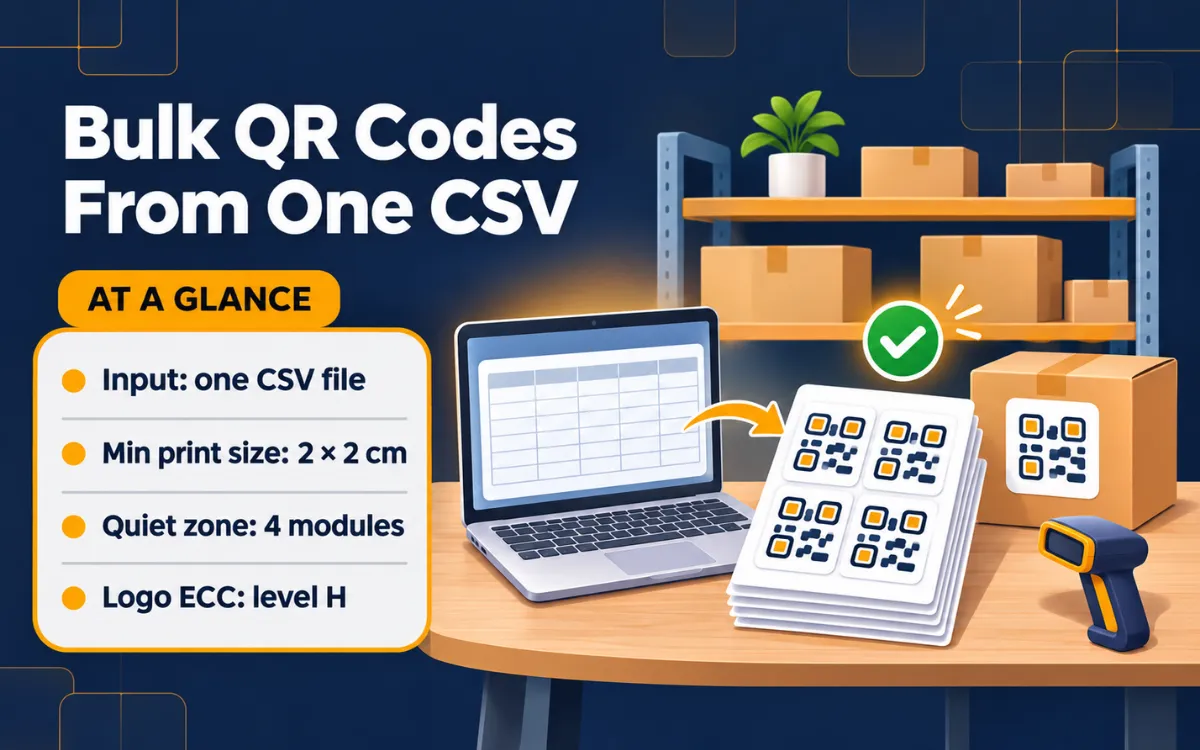
A bulk QR code generator turns a spreadsheet into many QR codes in one run, so you design once instead of building each code by hand. With QR Code Rabbit, you upload a CSV, apply one branded design, and export the whole batch. This guide is for teams making tickets, labels, badges, or product tags.
Table of Contents
1. What is a bulk QR code generator?
A bulk QR code generator reads a spreadsheet and creates one QR code per row. Instead of repeating the same create-and-download routine 300 times, you prepare the data once and let the tool do the repetition. The main wins are speed, a consistent design, and fewer copy-paste mistakes.
QR Code Rabbit supports bulk generation through CSV upload, which suits anything where each item needs its own code: event tickets, inventory tags, staff badges, or product packaging. A batch QR code generator also keeps every code visually identical, which matters when hundreds of printed codes sit side by side. In QR Code Rabbit, the design editor is free and includes logo upload, custom colors, solid or gradient fills, and 16+ body and eye shapes. Codes download as PNG, SVG, JPG, or WebP. Whether you build ten codes or a few hundred, the quality bar is the same: each code must scan reliably at the size you print it. That is why a batch needs a test step, which we cover below. Static codes are free forever, so a one-off batch of fixed content costs nothing to generate.
If you only need one or two codes, the standard URL QR code generator is faster. Bulk makes sense once you pass roughly a dozen codes with unique data.
2. Why not create QR codes one by one?

Creating codes one by one invites errors: a wrong link pasted into row 87, an inconsistent logo size, or a color that fails contrast. A batch QR generator removes those risks because the data lives in one file and the design is applied to every row identically.
The trade-off is that bulk makes bad data expensive. One wrong column header can spoil the whole run, so the preparation step matters more than the generation step.
3. How do you add serial numbers to QR codes?
To make a QR code with a serial number, put the serial in your spreadsheet and make it part of what each code encodes. The simplest pattern is a unique link per item, such as a ticket or asset page ending in the serial. Each row then produces a code that is unique and traceable.
Tickets: one row per ticket, serial as the last part of the link, so a door scan can look up that exact ticket.
Inventory and assets: one row per item, serial matching the label already printed on the equipment.
Packaging: one row per batch or product code, so a scan lands on the right product page.
Pad your serials. Use 0001, 0002 and so on instead of 1, 2, so rows sort correctly in a spreadsheet and printed labels line up.
Keep serial numbers unique. Duplicates produce identical codes, which defeats the point of tracking individual items. Sort the file and check for repeats before you upload.
4. How do you create personalised QR codes in bulk?
A personalised QR code is one that looks like your brand and, where needed, carries its own data. Branding is applied once to the whole batch: you choose colors, shape, logo, and frame, and every code inherits it.
Keep contrast high: dark code on a light background scans best. Leave a quiet zone of at least 4 modules of white border around each code. For print, use SVG so the codes stay sharp at any size, and never print smaller than 2 × 2 cm at close range.
Custom-designed codes can earn up to 70% more scans than plain black-and-white ones, according to the figure QR Code Rabbit uses on its site, so it is worth getting the design right before you run the batch.
5. How do you upload a spreadsheet and export a batch?
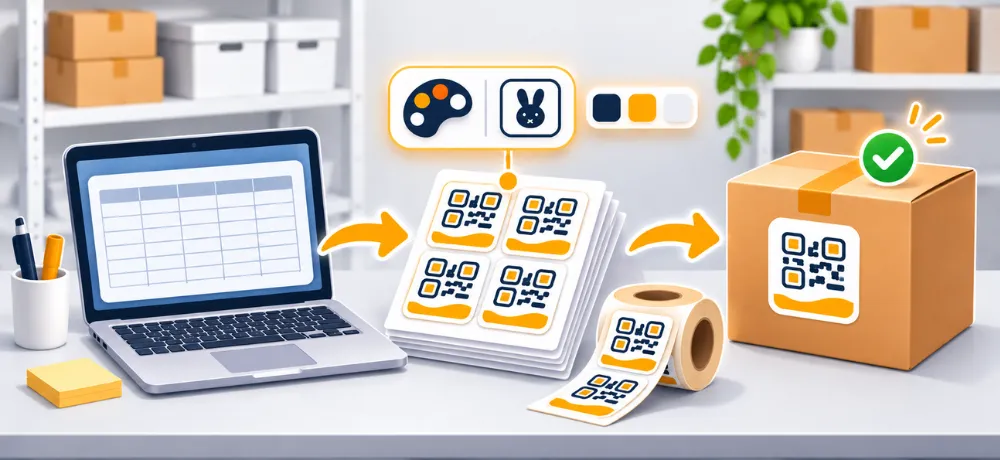
Here is the full flow from empty spreadsheet to printable batch. The exact menu labels in the dashboard may change, so follow the on-screen prompts where they differ from this outline.
Open the QR Code Rabbit generator to start. Static codes need no signup; bulk CSV jobs and dynamic codes need an account, and the pricing page lists CSV bulk jobs as a reason to upgrade.
6. What mistakes break a batch of QR codes?
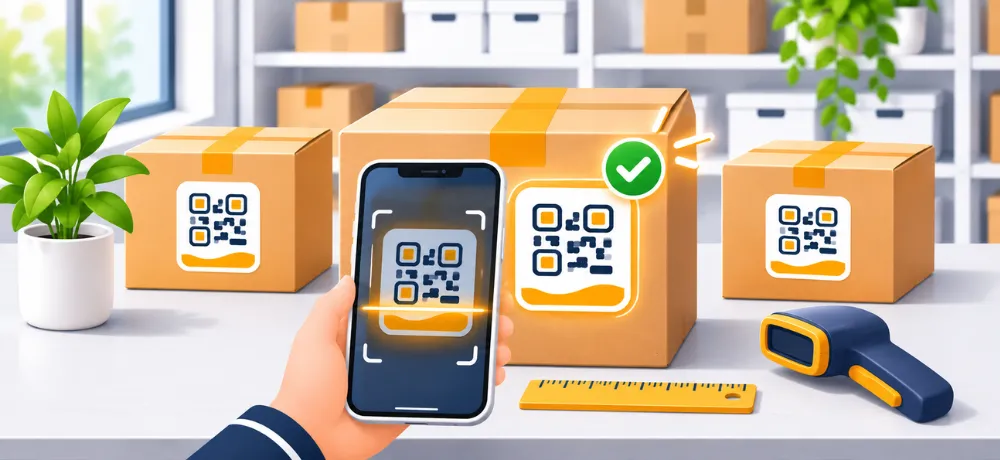
Most bulk failures come from the spreadsheet, not the generator. These are the ones worth checking first.
Duplicate serials. Sort the serial column and scan for repeats before uploading.
Broken links. A missing https:// or a stray space makes a code open the wrong page.
Printing too small. Under 2 × 2 cm at close range is risky; signage needs about 1 cm of code per 10 cm of scan distance.
Low contrast. Light codes on a busy or colored background fail in poor lighting.
Skipping the sample scan. Test several rows on iPhone and Android, since most phones scan with the native camera app.
Dynamic codes depend on your plan. Dynamic QR codes stop working when the subscription expires, so only print them if you plan to keep the plan active. The free plan lasts 15 days and includes 3 dynamic codes.
7. Should a batch use static or dynamic codes?
Choose static if the content is fixed and must never expire. Choose dynamic if you may edit the destination after printing, or you want scan analytics by city, country, and device.
For a deeper comparison, read our guide to the dynamic QR code and our explainer on static QR codes.
Bulk QR code generation saves the most time when each code carries unique data and the design is shared. Prepare a clean CSV, add serial numbers, brand the batch once, and test a sample before printing. That workflow is what makes a bulk QR code generator worth using.
Related: how to create a menu QR code and how to spot QR code scams.
FAQ
Can I create hundreds of QR codes at once?
Yes. Upload a CSV with one row per code to QR Code Rabbit's bulk option, design the batch once, and download the results. Prepare clean data first, because every row becomes a separate code.
How do I put a serial number in a QR code?
Add the serial number to each row of your spreadsheet, either on its own or inside the URL or text the code points to, such as a ticket or asset page. Each row then encodes its own unique value.
Can bulk QR codes carry my logo and brand colors?
Yes. QR Code Rabbit's design editor supports logo upload, custom colors, gradients, and shapes, and you download in PNG, SVG, JPG, or WebP. Use error correction level H when you add a large logo.
Is bulk QR code generation free?
Static QR codes are free forever. Dynamic codes are free only during the 15-day free plan, limited to 3 codes. Bulk CSV jobs are listed as a reason to upgrade, so check the pricing page for your plan.
Should bulk QR codes be static or dynamic?
Use dynamic codes when you may need to change destinations after printing or want scan analytics. Use static codes for fixed data that must never expire. Pick based on whether the printed code might need to change.
How do I check a batch before printing?
Scan a sample from the batch on both an iPhone and an Android phone, plus the first and last rows. Confirm each serial number opens the right destination at the exact size you plan to print.
Related Articles
12 Diwali QR Code Ideas for Shops, Families & Brands (2026)
UPI payments, WhatsApp orders, expiring offers and video blessings, with the right QR type for each
How to Create a Menu QR Code for Restaurants (Step by Step)
Pick PDF or URL, design it, size it for the table, and update your menu without reprinting.
What You Will Find on the QR Code Rabbit Blog
We publish practical guides, plain-language explainers, and occasional news about QR adoption and security. The audience is shop owners, marketers, teachers, and developers who use QR codes in real projects — not theory for its own sake.
How-to articles
Step-by-step pieces for menus, badges, packaging, forms, UPI labels, and social profiles. Most include sizing tips and a short testing checklist.
Knowledge base posts
Capacity limits, error correction, static vs dynamic architecture, and how scan tracking works — written so non-developers can follow, with enough depth for integrators.
News and security
Retail and fintech adoption stories, product updates, and reminders about quishing and safe scanning habits as QR usage grows.
Resources and templates
Campaign checklists, design consistency notes, and pointers for teams rolling QR out to many locations or via API.
New posts regularly
Browse by category — how-to, knowledge base, news, resources — or read everything on the main blog index. No paywall, no login required.
Ready to try it? Create a free QR code on QR Code Rabbit.